
Billing Support

Billing Support
Accessing The Customer Billing Portal
Accessing the customer billing portal
From the MHTC homepage (www.mhtc.net):
Click Billing Account Access

From a phone or tablet, accessing the Billing Account Access link will look a little different:
Click Quick Links

The click Billing Account Access

On the login page, enter the username and password, then click Log In:
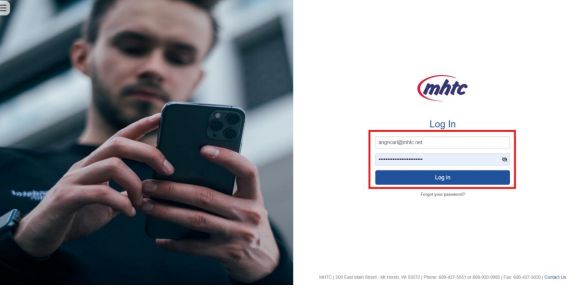
It is also on this page where the customer will find the “Forgot Your Password” option:

SERIVCES OFFERED IN THE CUSTOMER BILLING PORTAL

MHTC Customer Billing Portal - Forgot Password
MHTC Customer Billing Portal - Forgot password
From the MHTC homepage (www.mhtc.net):
Click Billing Account Access
From a phone or tablet, accessing the Billing Account Access link will look a little different:
Click Quick Links
Click Billing Account Access
Click Forgot Your Password?
Enter the email address that is associated with the Billing Portal, check “I’m not a robot” then click Continue:

If the email address above is NOT valid in the Billing Portal system, the customer will see the following:

If the email address is valid, the customer will be given the option to select how to deliver a recovery code. The email address shown is the email address set up for Billing Portal access. Click the radio button then click Send Recovery Code:

Once the customer clicks Send Recovery Code, they will be taken to the screen to enter the Recovery Code:

The customer will need to access their email to retrieve the recovery code. The email will show up like this:

NOTE: If the email does not appear in the email Inbox, please check junk/spam email.
Here is the content of the email. The recovery code is listed in the body of the message:

Enter the Recovery Code received in the email, then click Continue:

The customer will be asked a “Security Question” that is set up in the Settings of the Billing Portal.
This question/answer combination may or may not be the same as what they used for the CPNI
Questions. Fill in the Answer and then click Continue:

If the question is answered correctly, the customer will be prompted for their new password:

NOTE: If for any reason the password cannot be reset through this method the Billing Office will need to be contacted for assistance.
After clicking Save Changes the following message will appear:

The customer can click on the link Click here to Log in and this will take them back to the Log In screen.
The customer will also receive an email notifying them that their password has been changed:

Content of email:

In eLation, there will be an Activity Log event that also shows that the customer changed their password:
